Netconfig AT Examples
This document describes detailed examples of running Wi-Fi AT Command Set commands on the device.
Important
These provisioning examples may vary depending on the module. Refer to Firmware Versions and Feature Differences for command support on your module.
Easy WiFi Config Bluetooth Provisioning
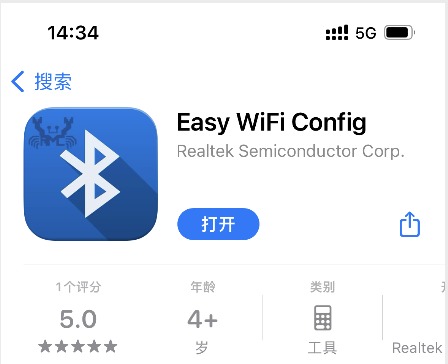
App download:
On iOS, search for Easy WiFi Config in the App Store to download and install.
Android APK download: Mobile APK package
Set the module Wi-Fi operating mode and save to Flash
Command:
AT+WMODE=1,1
Response:
OK
Enable Bluetooth provisioning
Command:
AT+WCONFIG=2
Response:
OK
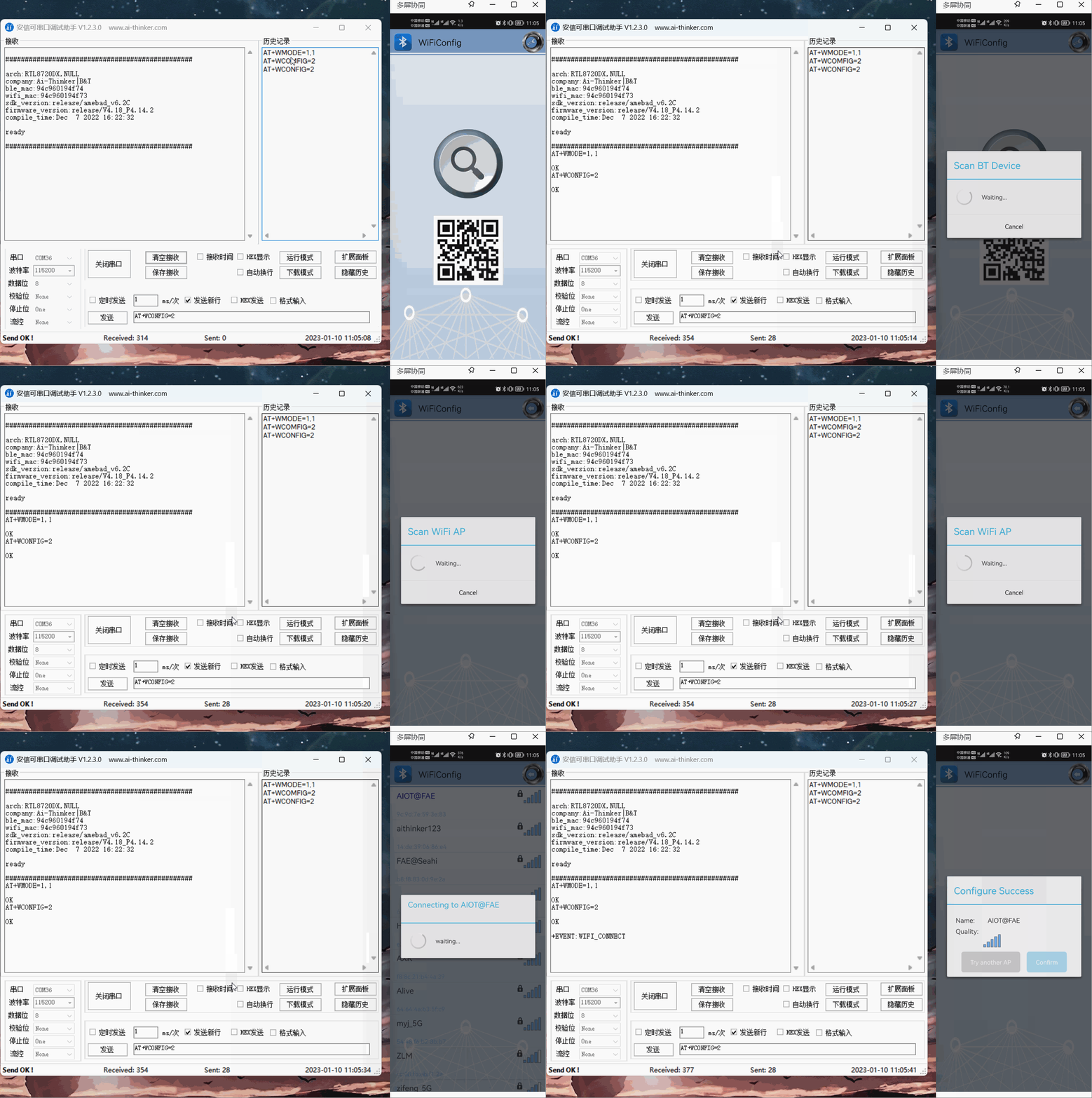
App-side operations
SmartConfig One-Key Provisioning
App download:
On iOS, search for Esptouch in the App Store to download and install.
Android APK download: Mobile APK package
Set the module Wi-Fi operating mode and save to Flash
Command:
AT+WMODE=1,1
Response:
OK
Start SmartConfig provisioning once
Command:
AT+WCONFIG=1
Response:
OK
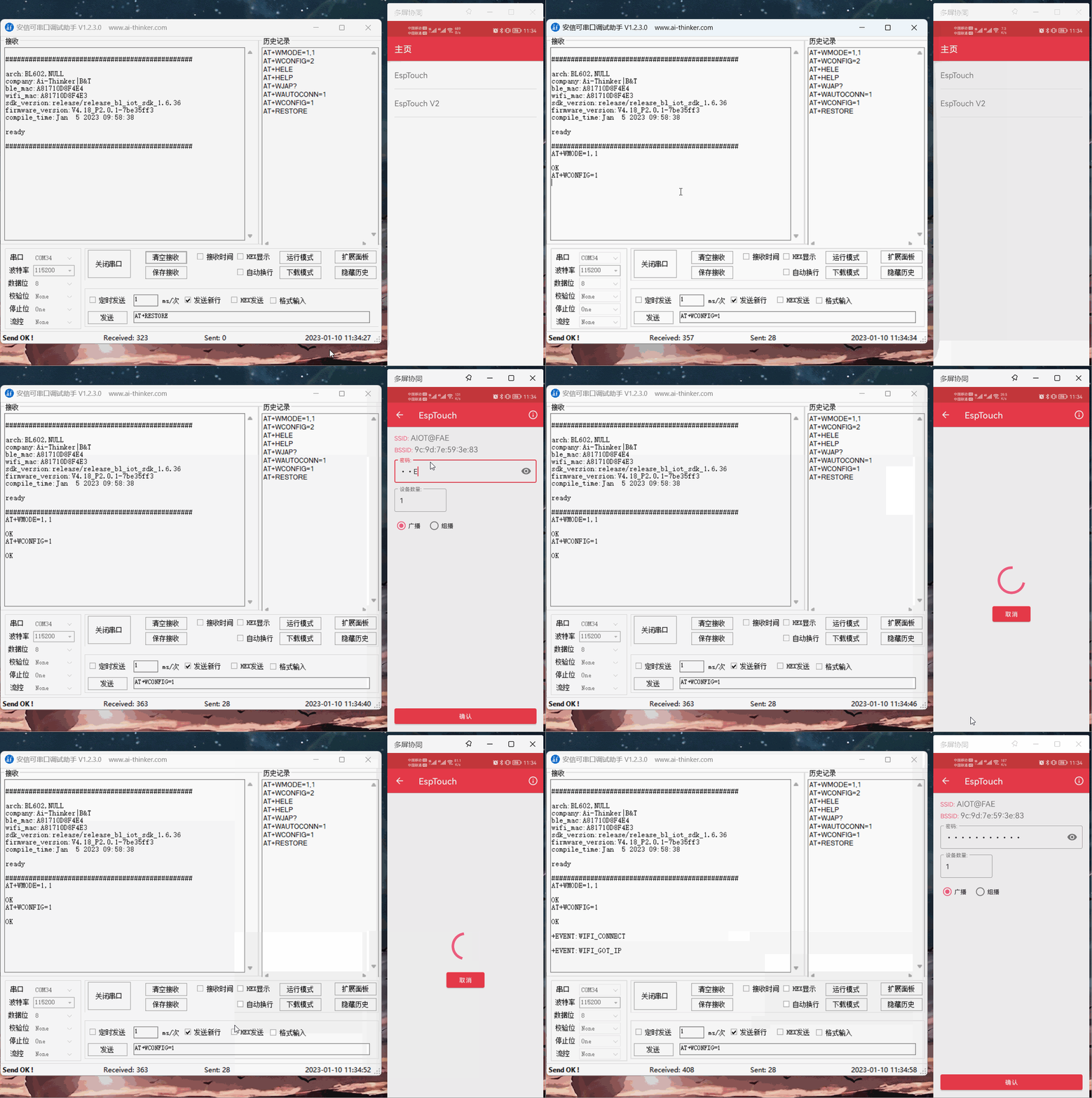
App-side operations
After successful provisioning, disable provisioning mode to avoid excessive memory usage.
Command:
AT+WCONFIG=0
Response:
OK
WeChat Airkiss One-Key Provisioning
Airkiss provisioning can use a WeChat official account or mini program; no separate app download is required.
Set the module Wi-Fi operating mode and save to Flash
Command:
AT+WMODE=1,1
Response:
OK
Start Airkiss provisioning once
Command:
AT+WCONFIG=3
Response:
OK
WeChat official account provisioning: follow the Ai-Thinker WeChat account; the Airkiss interface is under App Development > WeChat Provisioning.
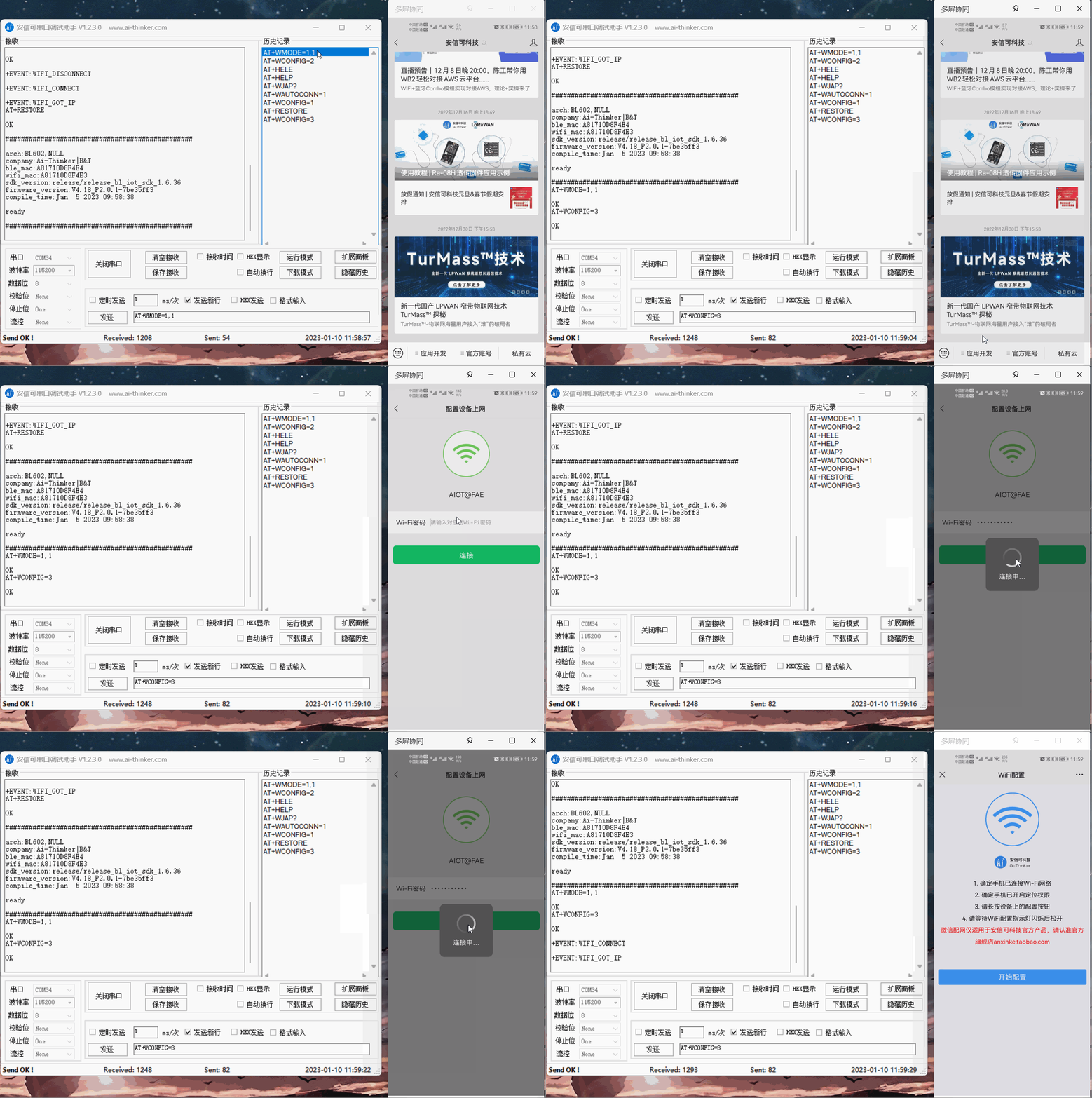
WeChat mini program provisioning: search for the Ai-Thinker IoT mini program:
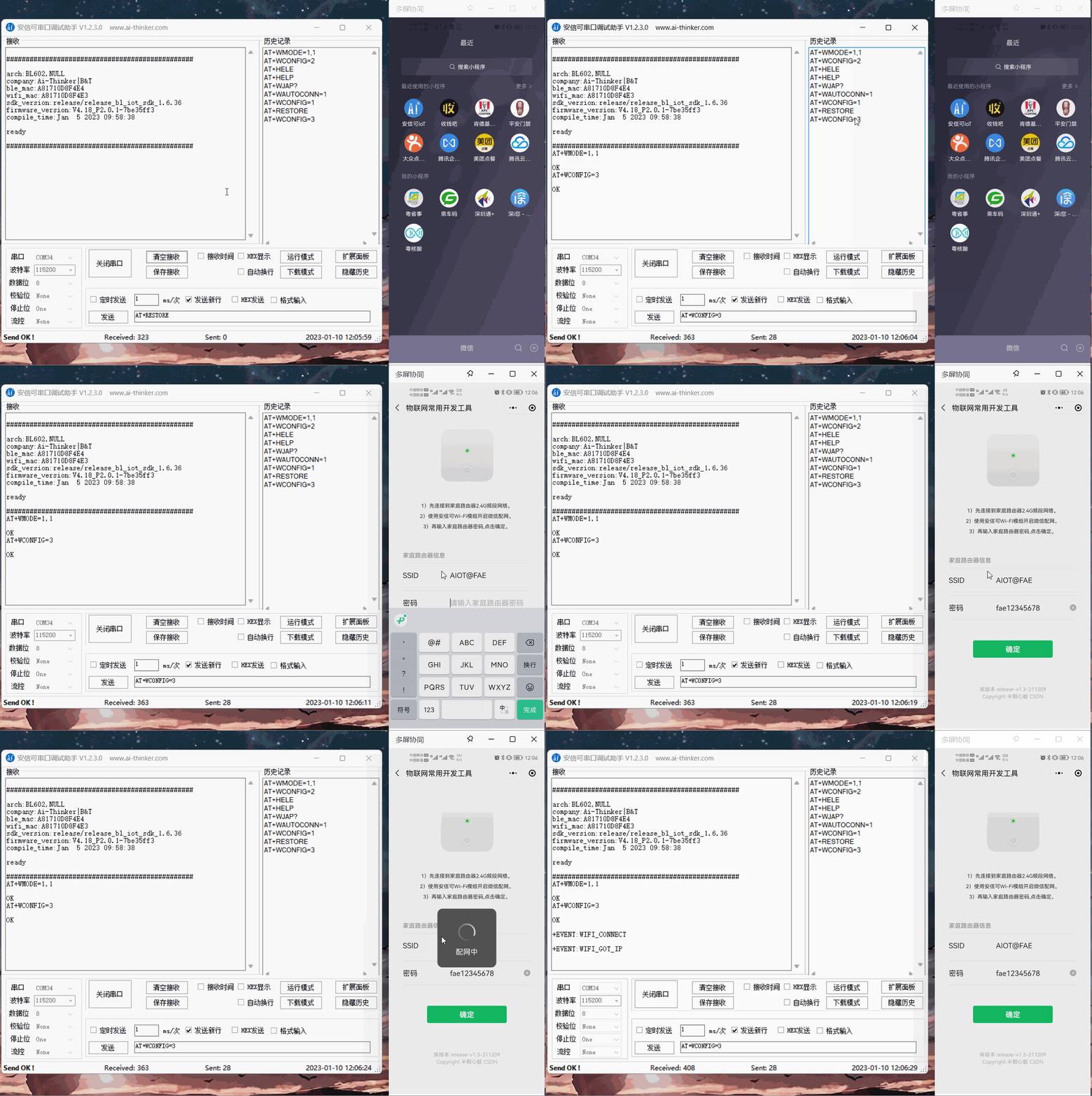
After successful provisioning, disable provisioning mode to avoid excessive memory usage.
Command:
AT+WCONFIG=0
Response:
OK
Blufi Bluetooth Provisioning
Blufi Bluetooth provisioning supports apps and WeChat mini programs.
App download:
On iOS, search for EspBlufi in the App Store.
Android APK download: Mobile APK package
Mini program: search WeChat for Ai-Thinker IoT mini program
Set the module Wi-Fi operating mode and save to Flash
Command:
AT+WMODE=1,1
Response:
OK
Start Blufi provisioning once
Command:
AT+WCONFIG=2
Response:
OK
App provisioning method:
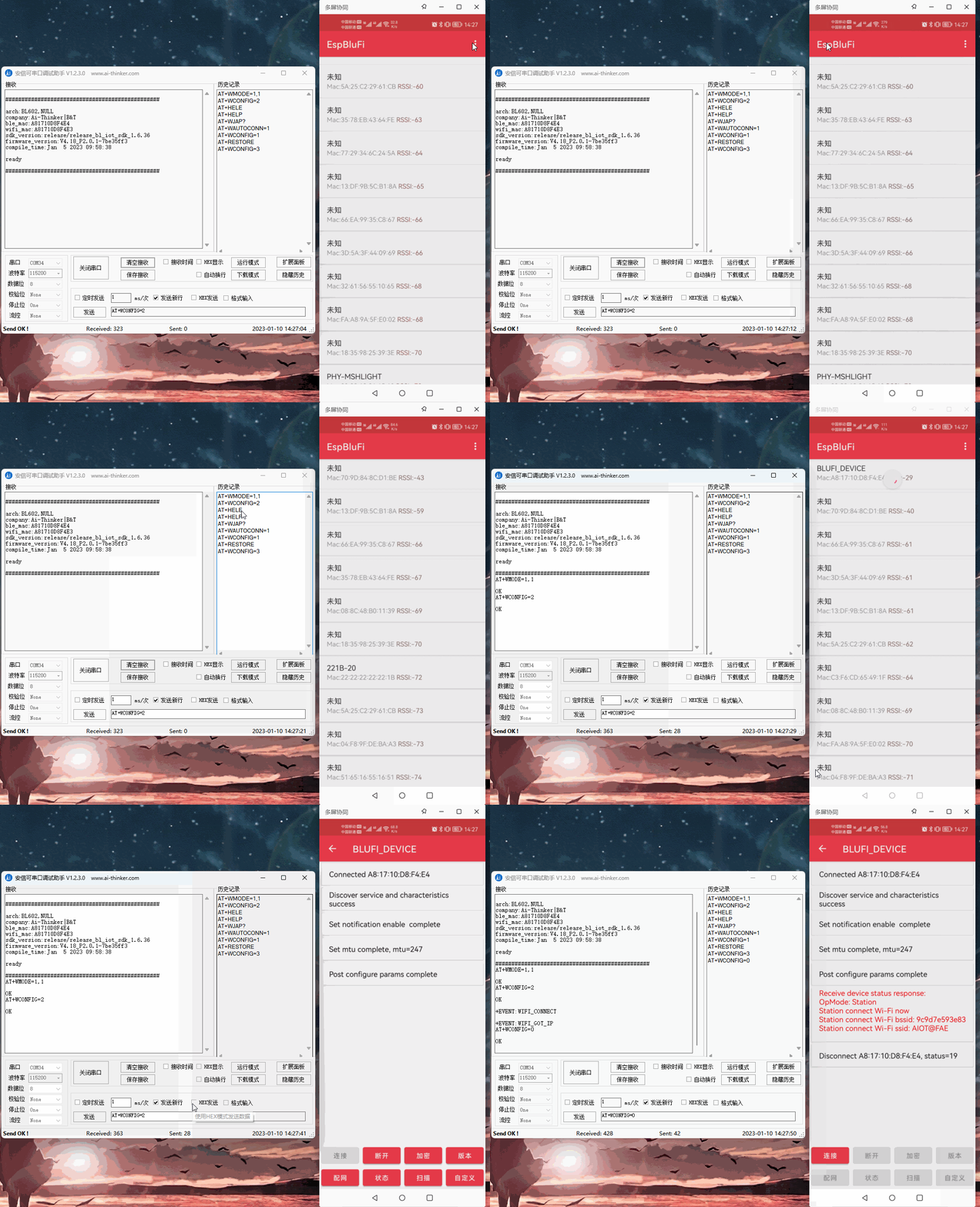
Mini program provisioning method:
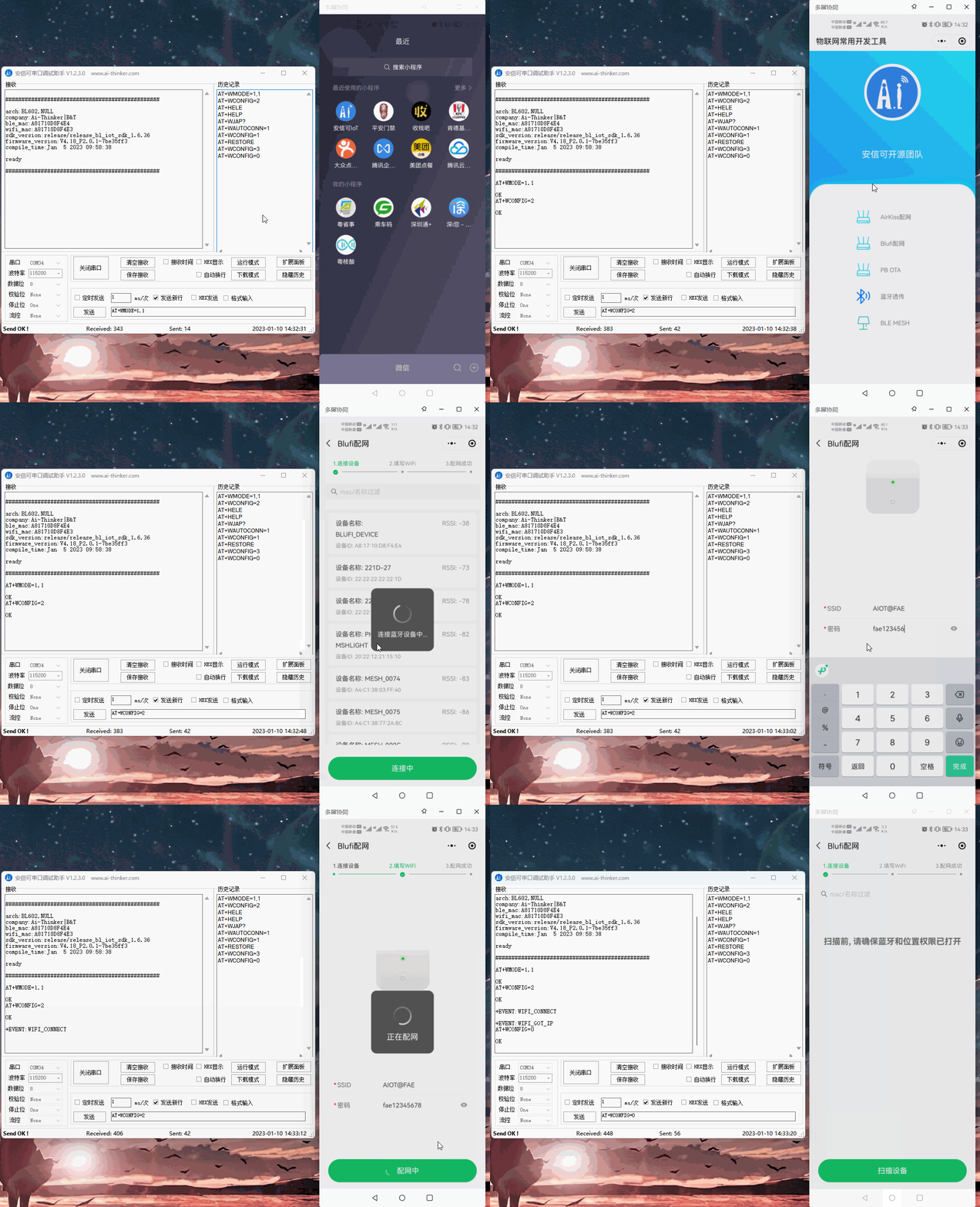
After successful provisioning, disable provisioning mode to avoid excessive memory usage.
Command:
AT+WCONFIG=0
Response:
OK
Command-based provisioning
Example: connect directly to router SSID AIOT@FAE, password fae12345678.
Set the module Wi-Fi operating mode and save to Flash
Command:
AT+WMODE=1,1
Response:
OK
Connect to target router
Command:
AT+WJAP="AIOT@FAE","fae12345678"
Response:
OK
Enable automatic Wi-Fi reconnection on power-up
Command:
AT+WAUTOCONN=1
Response:
OK
How to connect to the router with the strongest signal when multiple routers share the same SSID and password
Example: connect to the strongest-signal router for SSID AIOT@FAE, password fae12345678.
Scan for target SSID using AT+WSCAN=<ssid>
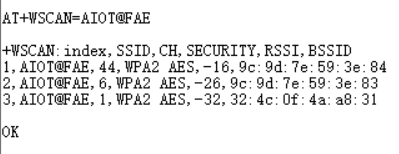
Scanning shows the strongest signal at -16 dBm with BSSID 9c:9d:7e:59:3e:84. Use AT+WJAP with the BSSID parameter to connect to the strongest router.
Set the module Wi-Fi operating mode and save to Flash
Command:
AT+WMODE=1,1
Response:
OK
Connect to target router
Command:
AT+WJAP="AIOT@FAE","fae12345678","9c:9d:7e:59:3e:84"
Response:
OK
Enable automatic Wi-Fi reconnection on power-up
Command:
AT+WAUTOCONN=1
Response:
OK